

Guide to Price Calculation and Booking
Follow these simple steps to estimate the price of your project and schedule an appointment with our team.
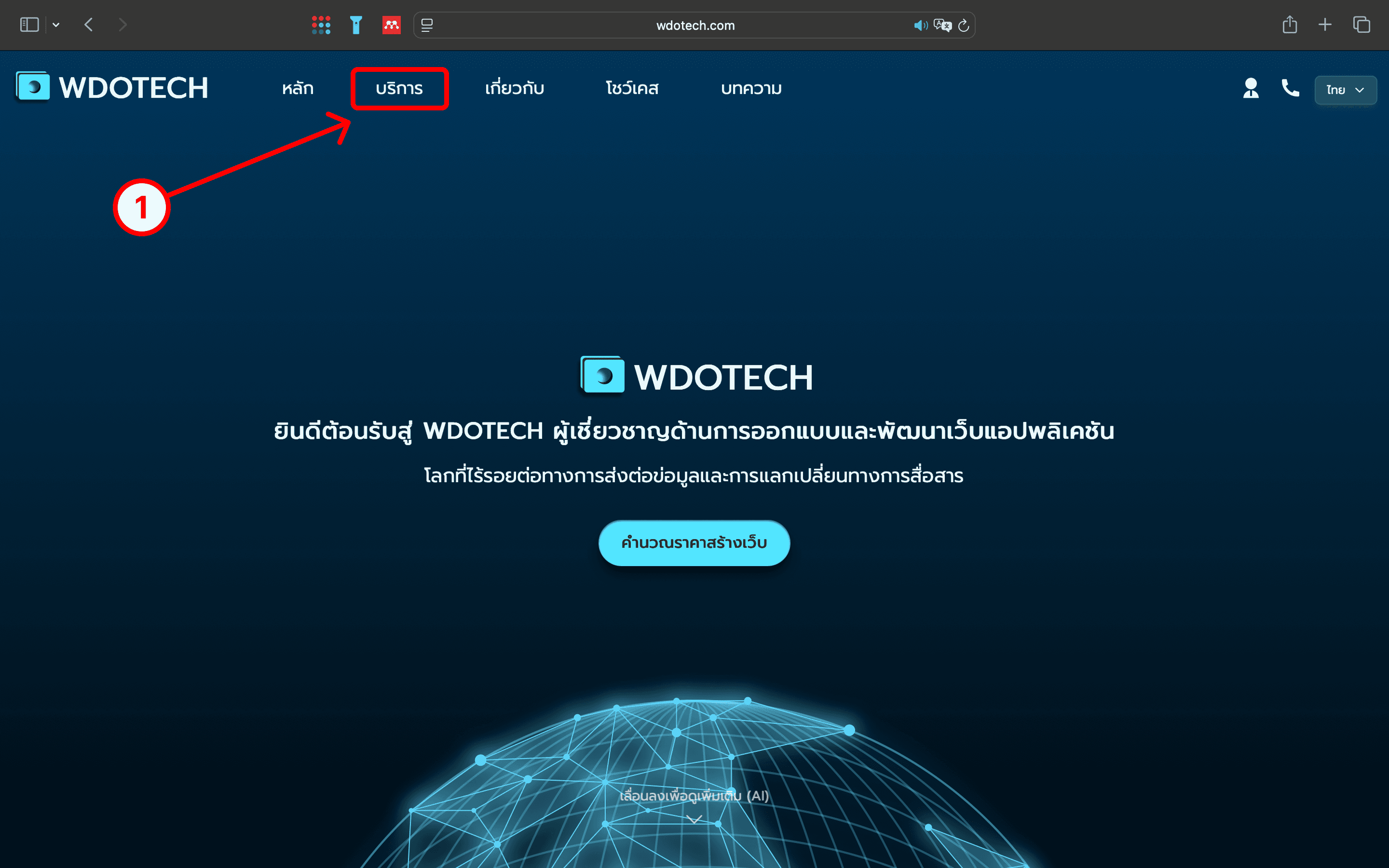
From the homepage, click on the "Service" menu in the navigation bar to access all of WDOTECH's services.
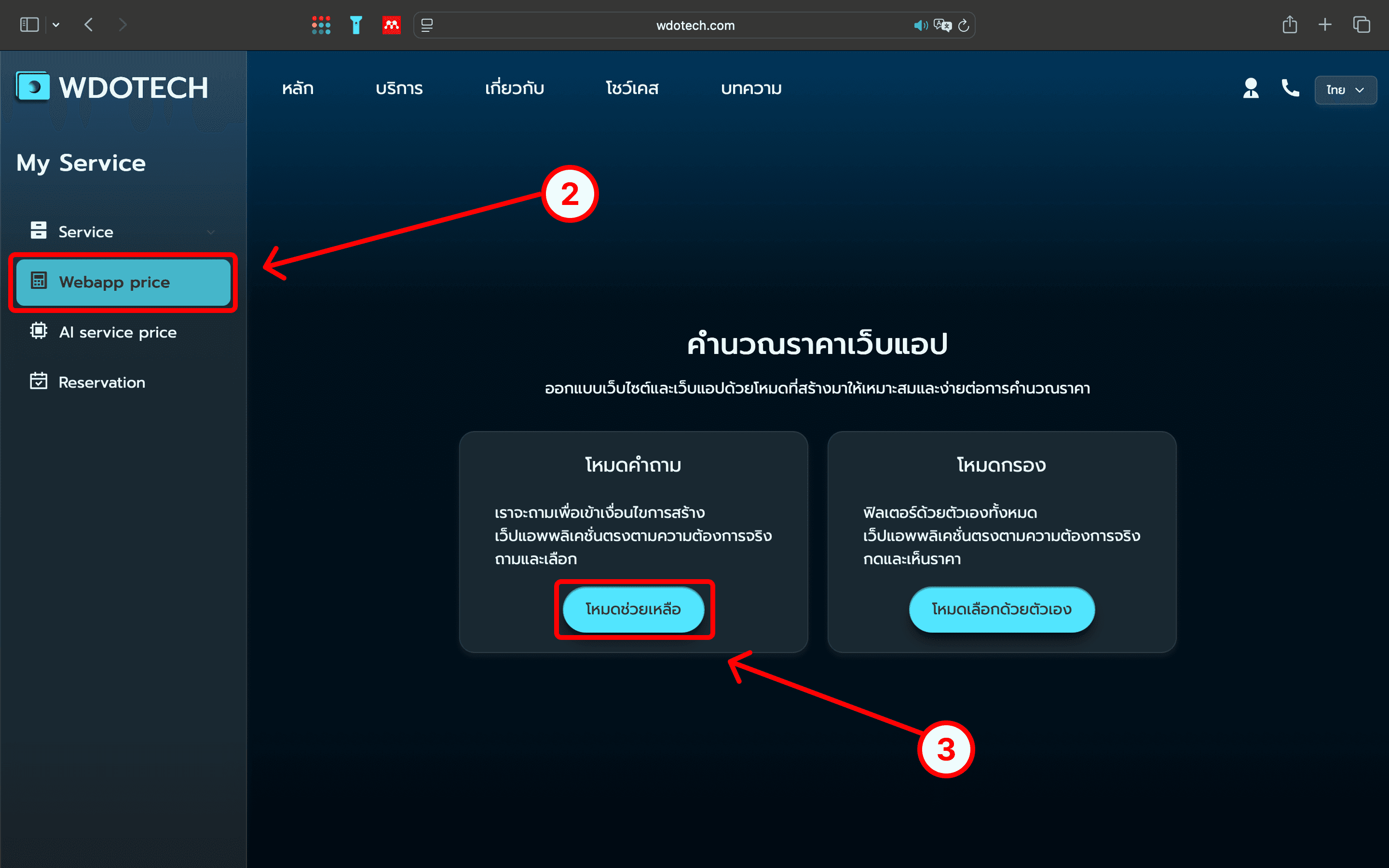
On the services page, there is a sidebar on the left. Select the "Webapp price" menu to go to the web application price calculation page.
On this page, you can choose "Assisted Mode or Manual Mode," where the system will recommend suitable options step by step.
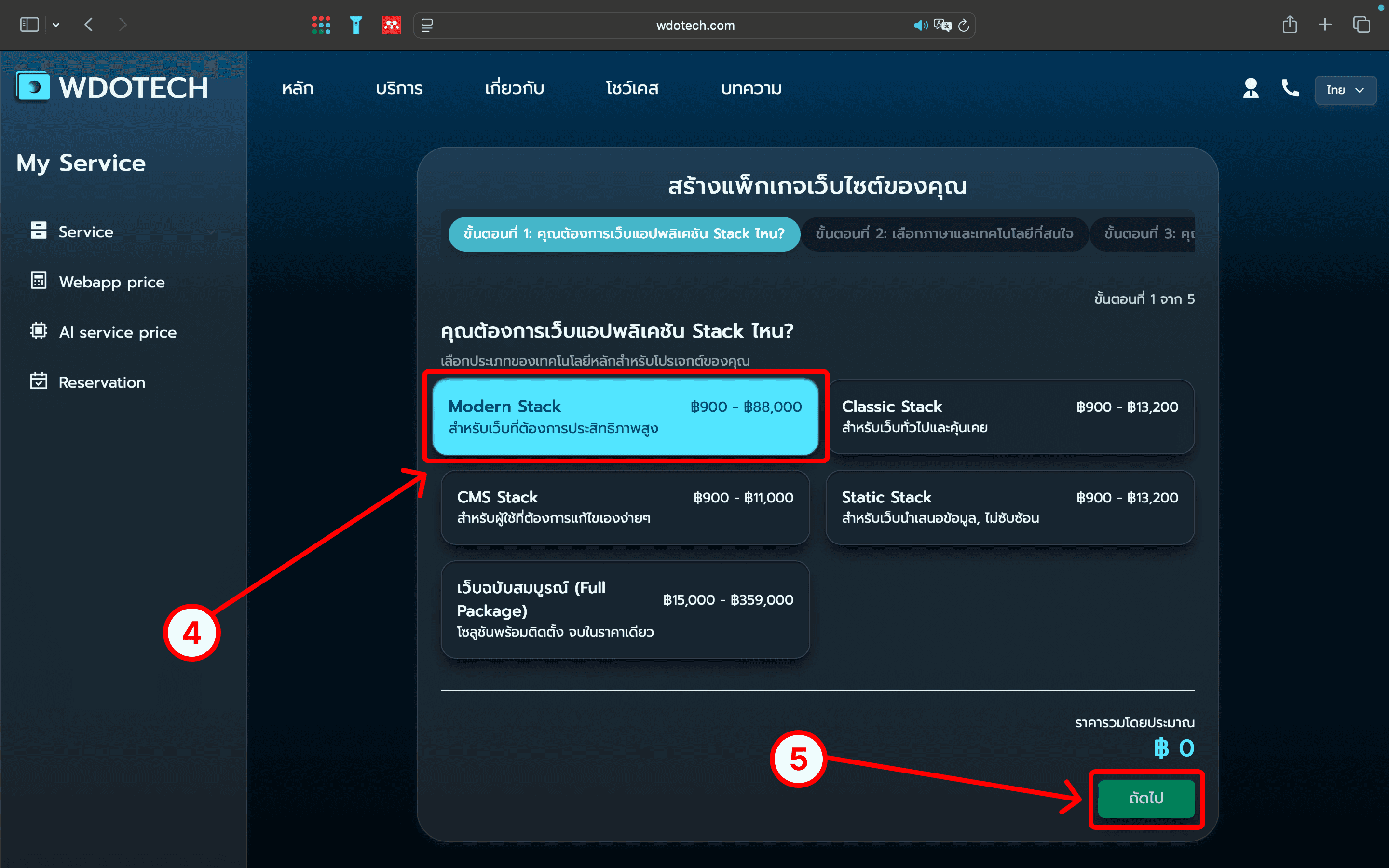
Select the stack you want, such as "Modern Stack" for high-performance websites.
After selecting the package and various add-ons, press the "Next" button to proceed to the summary step.
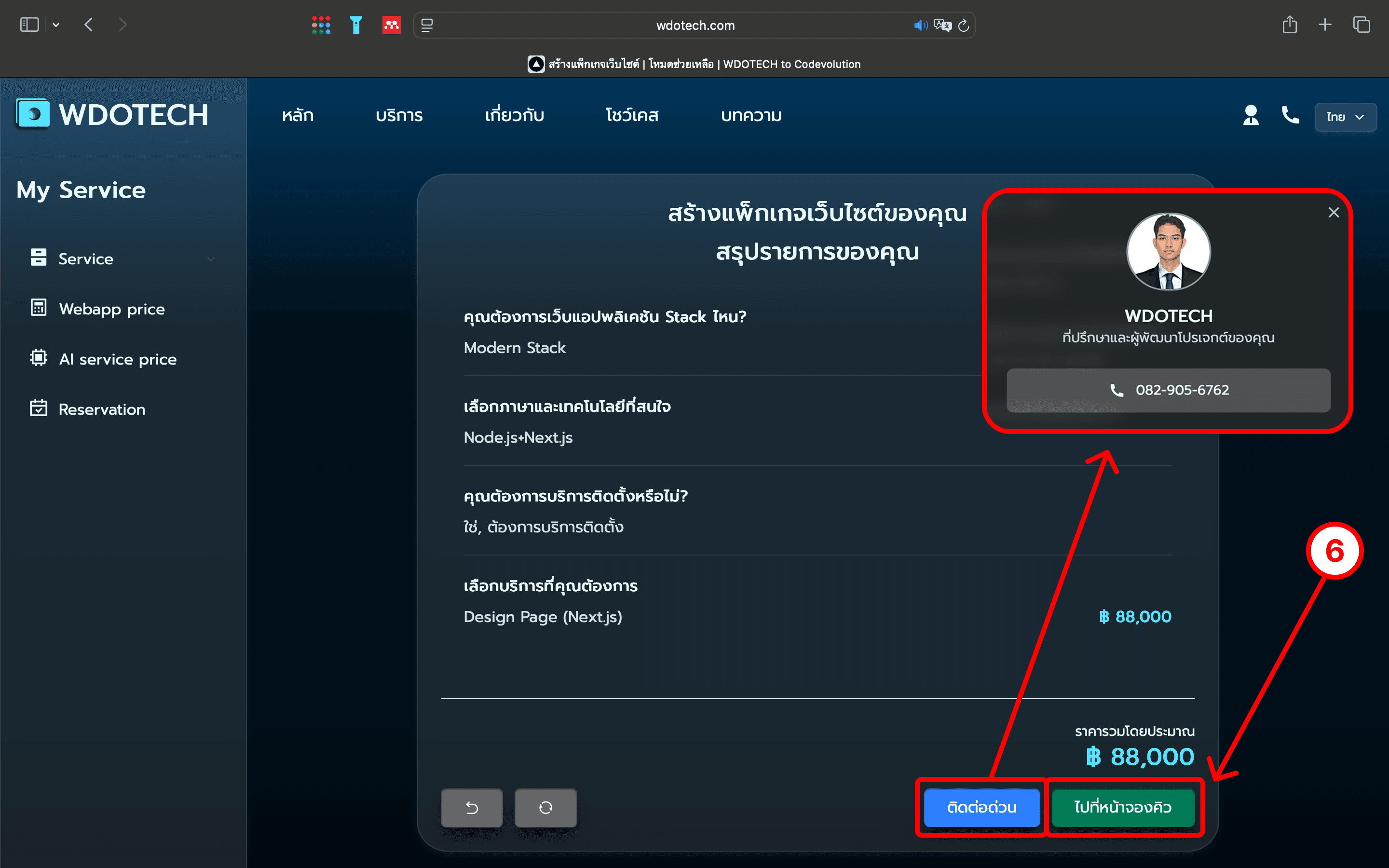
The system will summarize all your selected items and show a preliminary price estimate. You can choose "Quick Contact" to talk to a consultant or "Go to Booking Page" to make an online appointment immediately.
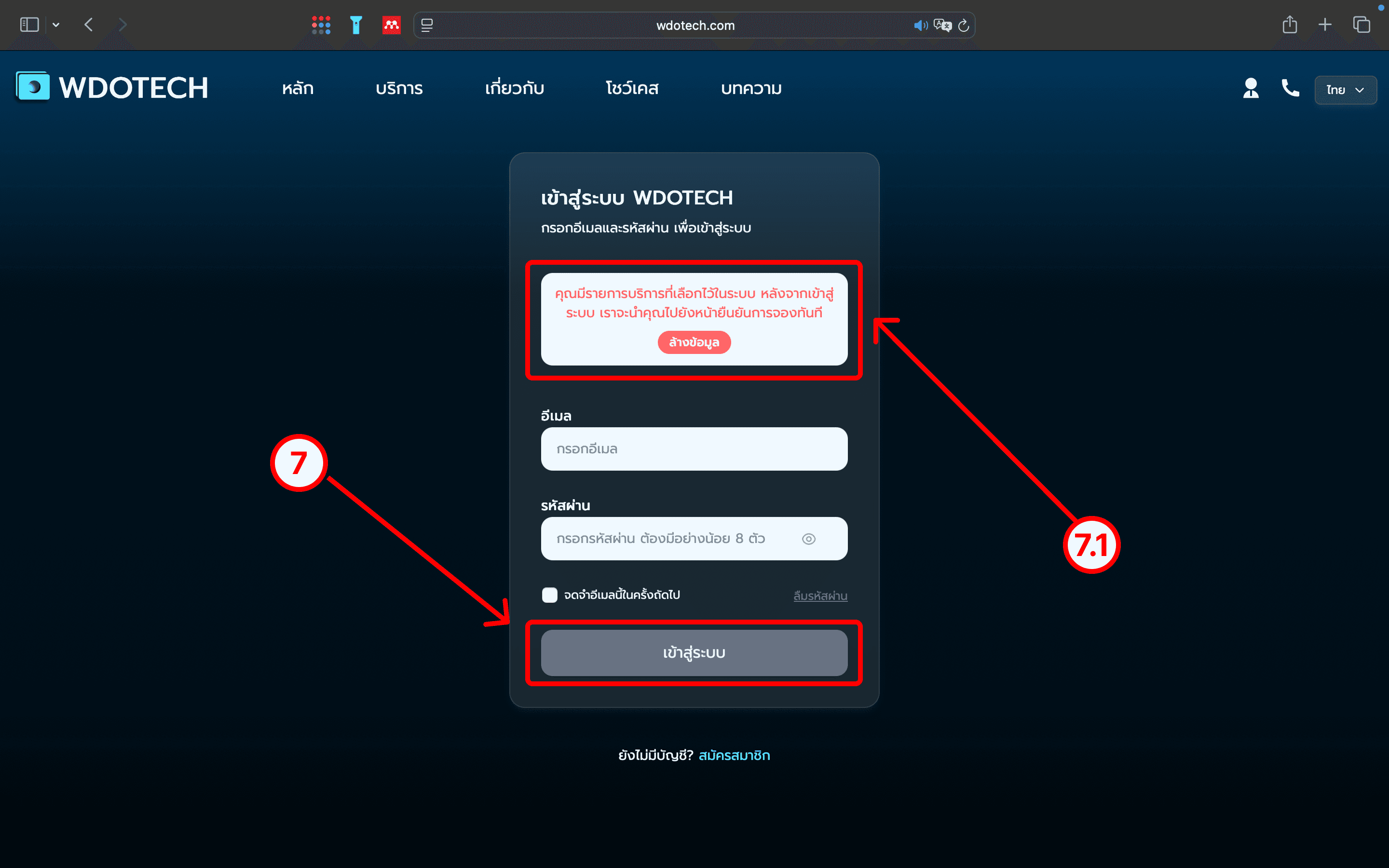
If you are not logged in, the system will take you to the Login page before you can proceed with the booking.
A notification message will inform you that after successful login, the system will automatically redirect you back to the booking confirmation page.
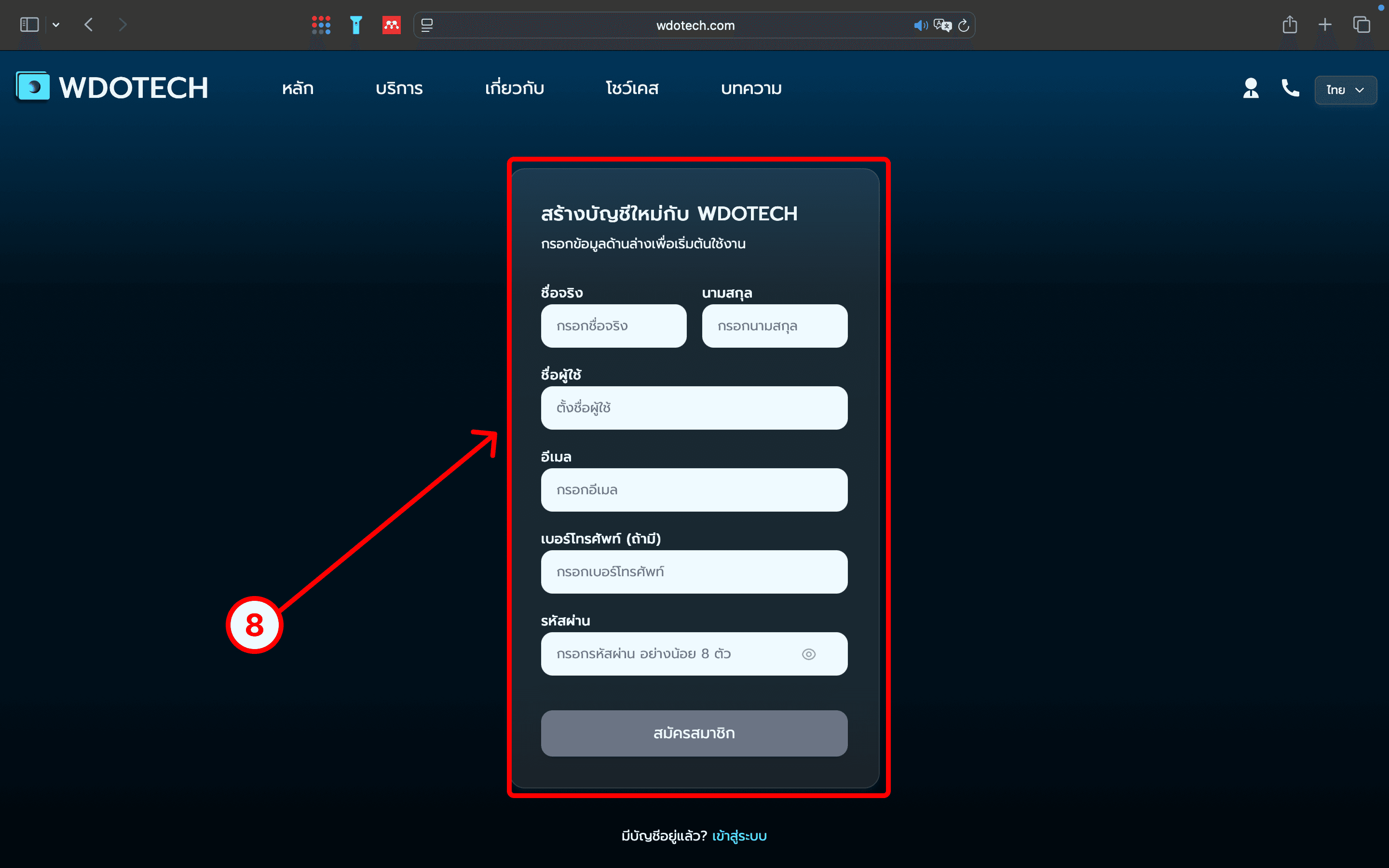
For new users, you can click "Register" to create a new account by filling in the necessary information.
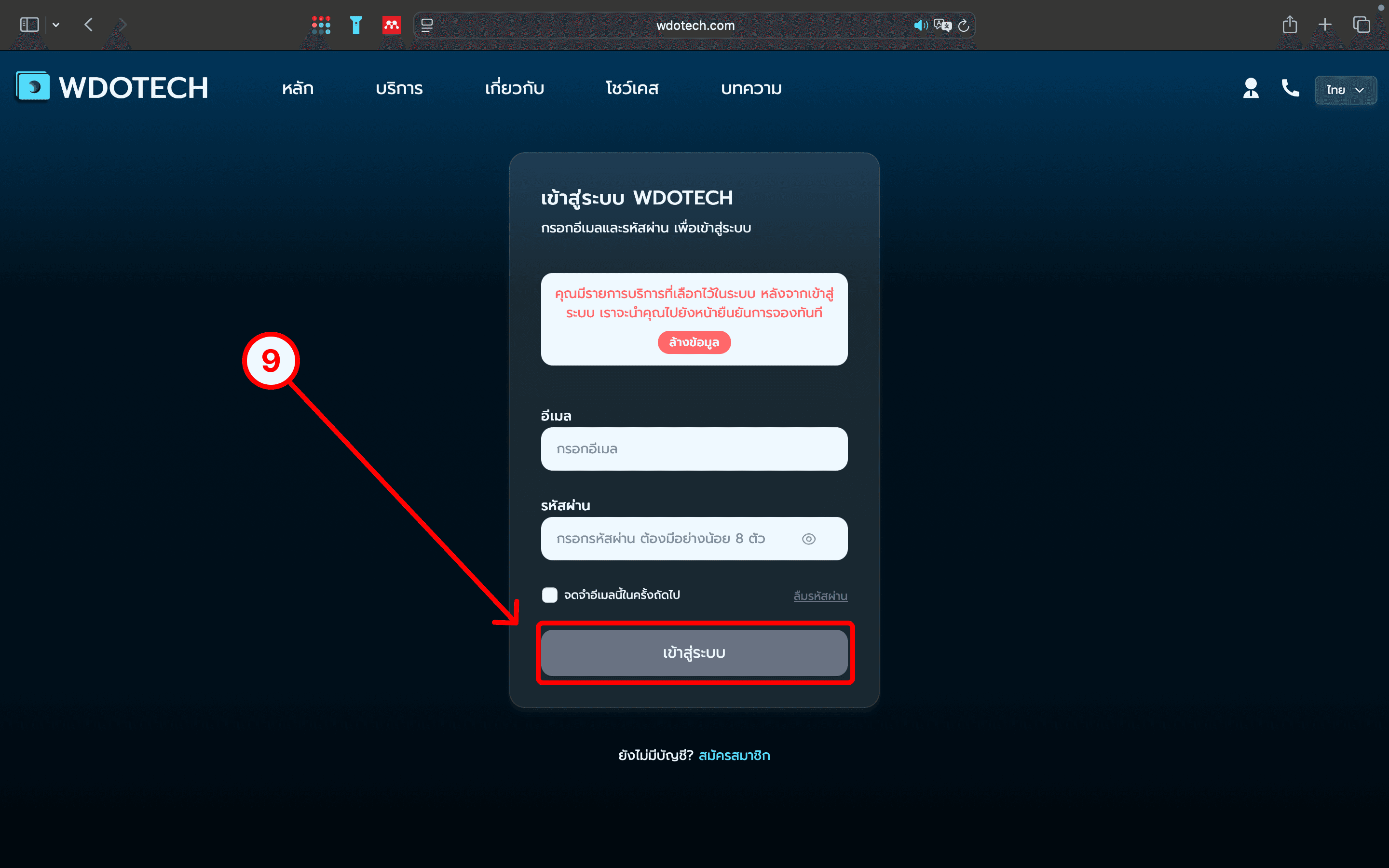
After entering your email and password, press the "Login" button to proceed to the next step.
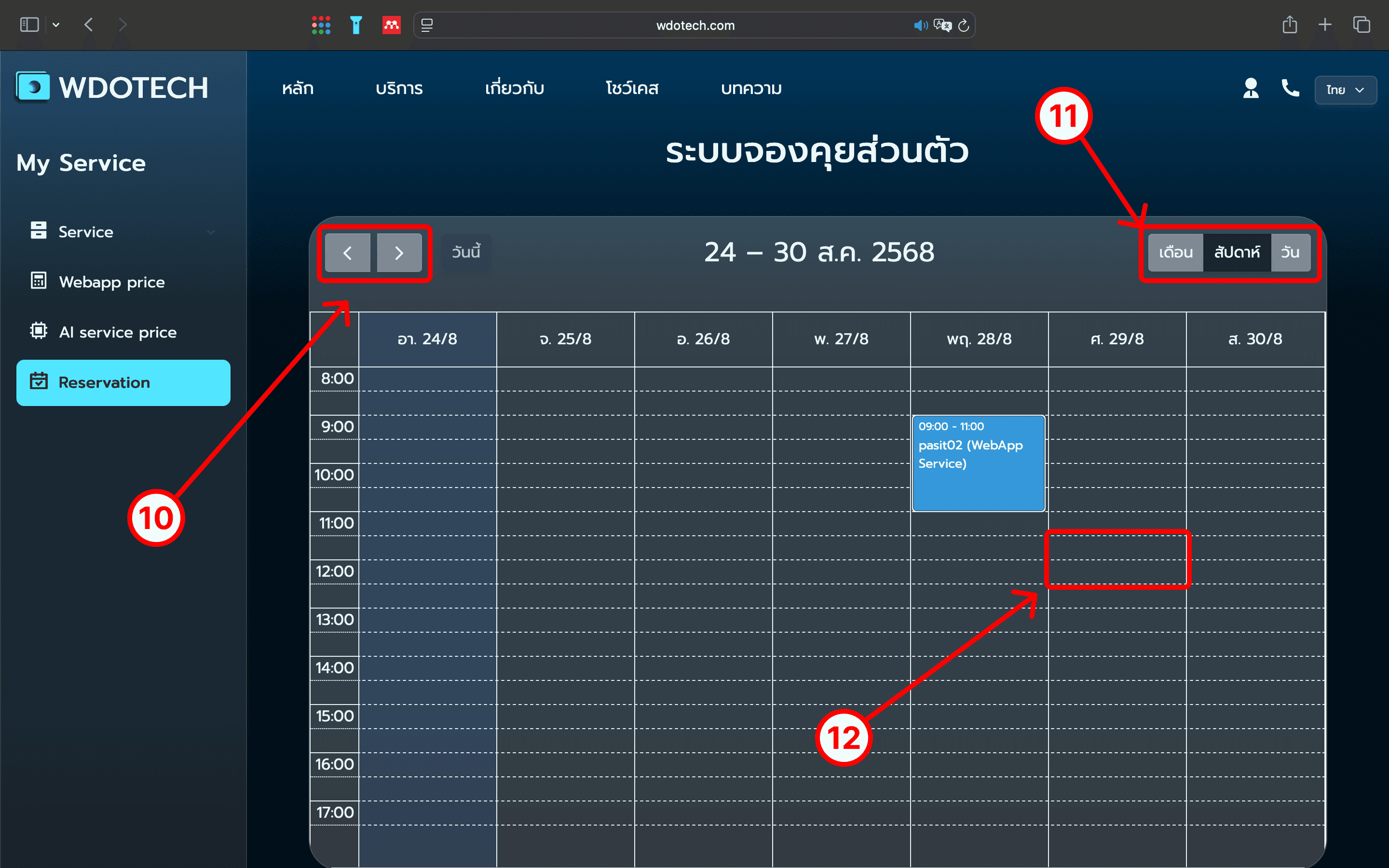
Once logged in, go to the "Reservation" menu to view the appointment schedule.
You can scroll to the desired date and change the view to weekly or daily.
Click on an available time slot in the schedule to start booking.
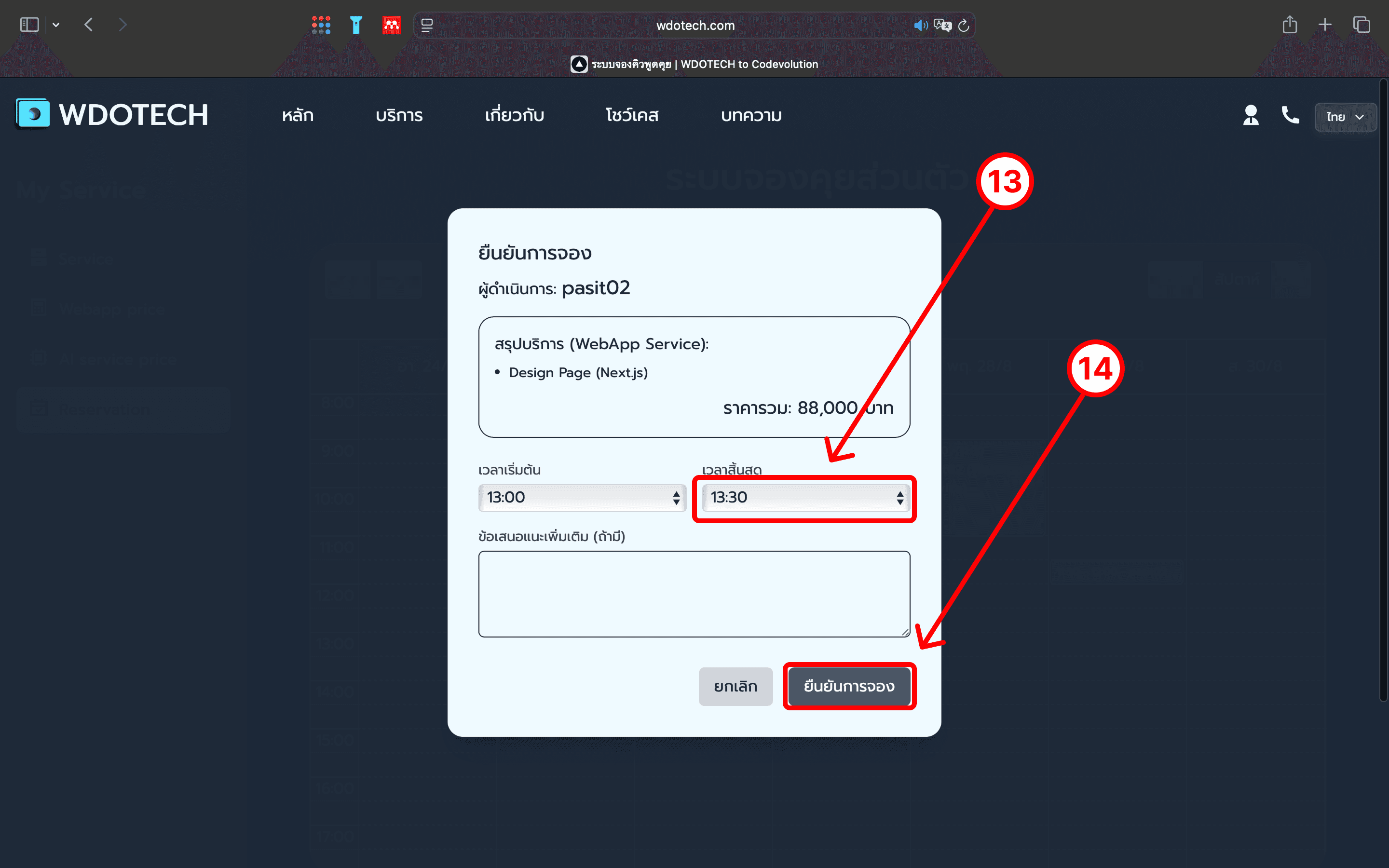
The system will display a summary window for the service you want to book. You need to set the end time for the appointment.
Review all details again, then press the "Confirm Booking" button to complete.
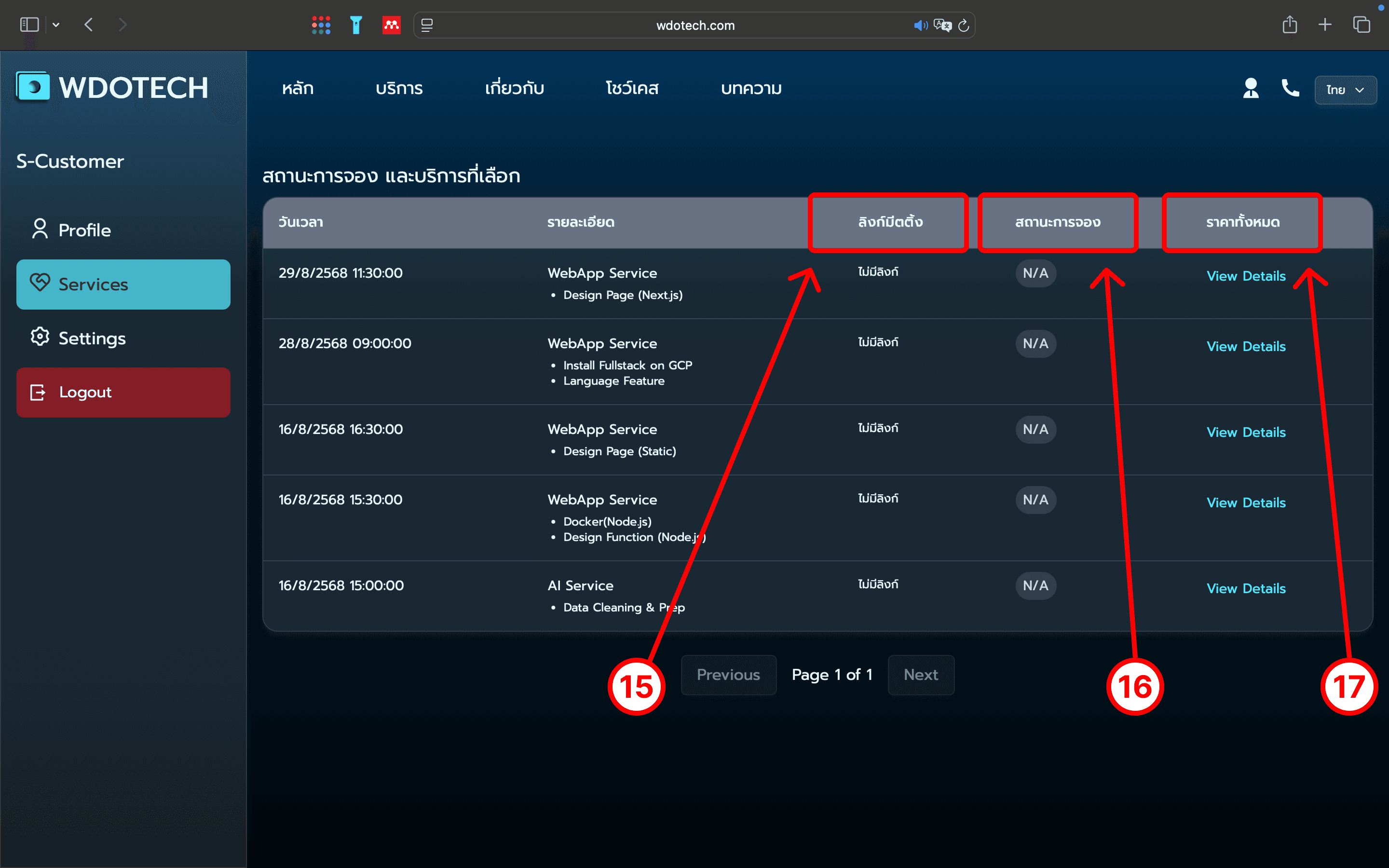
You can view the "Link" to use on the day of the meeting.
Check your "Booking Status" here, which could be Pending, Confirmed, or Completed.
The "Total Price" column will show the cost for that service.
Note: One day before the appointment, our staff will contact you by phone to confirm the schedule and send you a link to join the meeting.